
Are GPL Plugins Safe? How to Check Before You Install
GPL licensing does not certify a download. Use this practical guide to evaluate the source, inspect the files, check vulnerabilities and plan reliable updates.
Are GPL plugins safe? They can be, but the GPL label alone does not tell you whether a particular download is safe to install. A useful assessment looks at where the files came from, what has changed, whether the release has a known security flaw, and how you will receive fixes.
A low price is not evidence of malware. An expensive subscription is not proof that software has no vulnerabilities. The decision becomes clearer when you evaluate the actual package and the maintenance behind it.
This guide shows how to check a GPL WordPress plugin before running it, what common security checks can establish, and when to pause the installation.
GPL explains permissions; the download source answers a different question
WordPress is distributed under the GNU General Public License. GPL-covered code can be used, studied, modified and redistributed subject to the applicable license conditions. Charging for a copy is compatible with the GPL; GNU explains this in its FAQ on selling GPL software.
These permissions do not authenticate a ZIP file. A licensing statement cannot show whether an intermediary added code, whether the download contains the expected product, or whether the release is still maintained. For the broader licensing background, read What Is GPL?
The same distinction helps with nulled WordPress plugins. “GPL” names a license; “nulled” is commonly used for modified premium packages, often with licensing checks removed or paid features presented as unlocked. A modification is not automatically malicious, and permission to modify GPL-covered code does not establish access to a developer’s hosted services. An unexplained modification still deserves investigation before it runs on your server.
Our GPL vs Nulled comparison covers the terminology in more detail. Here, the practical question is narrower: what evidence supports trusting this particular download?
Three ways a plugin can create a security problem
Someone changed the package before you received it
A tampered plugin can contain a backdoor, create an administrator account, redirect visitors or interfere with security tools. In a documented 2025 investigation, Wordfence described modified plugins that weakened site defenses, including disabling Wordfence and hiding malicious activity. The researchers identified outdated nulled downloads as a likely entry route in that campaign.
That case explains a possible mechanism. It does not establish that every third-party GPL copy contains malware, or provide a malware rate for GPL downloads. Its useful lesson is that installing first and scanning later may give malicious code time to act.
The original plugin has a vulnerability
A WordPress plugin vulnerability can exist in an unchanged developer release. For example, an authorization error might allow a visitor to perform an action intended for administrators. The code need not contain an intentionally planted backdoor to expose the site.
File integrity and vulnerability status therefore require separate checks. Matching the developer’s files answers whether those files changed; it does not answer whether a security issue has since been discovered in them. The official WordPress security handbook emphasizes keeping installed plugins and themes updated and choosing maintained software.
You cannot obtain the next security fix
A plugin may be acceptable today and need a patch tomorrow. If your download provider stops supplying updates, or you assume updates are automatic when they require manual installation, the site can remain exposed after a fix exists.
Treat “updates included” as the start of a question. Find out how new files are delivered, who alerts you, and who actually installs them. Code access, an update service and original-developer support are separate parts of a purchase. The complete GPL WordPress plugins guide explains that broader package-and-service distinction.
How to check GPL WordPress plugin safety before installation
Do the first checks while the package is still a download. Avoid uploading an unknown ZIP to the live site just to see whether it works. If you cannot assess the files yourself, give the archive and the questions below to your developer or hosting security team.
1. Verify the source and identify the exact package
To verify the source of a GPL WordPress plugin, start with a short record: product name, original developer, supplier, download date, exact release/version and disclosed modifications. Check the supplier’s information against the developer’s documentation and changelog. An archive filename can be renamed; it is not reliable evidence on its own.
Ask the supplier specific questions:
- Are these the developer’s release files, or has the package been modified?
- If it was modified, which files changed and why?
- How can I identify the supplied release and its compatibility requirements?
- How will I obtain security updates, and what access do I need to install them?
A clear answer gives you something to verify. A badge saying “100% clean” does not identify the scanner, files checked, scan date or upstream source. Reviews can help you assess a supplier’s responsiveness, but cannot authenticate your particular archive.
Also check whether the feature you need depends on a developer account, remote API, template library or other hosted service. A working local plugin and access to a remote service are separate claims. Confirm the actual service terms instead of treating an activation message as proof of entitlement.
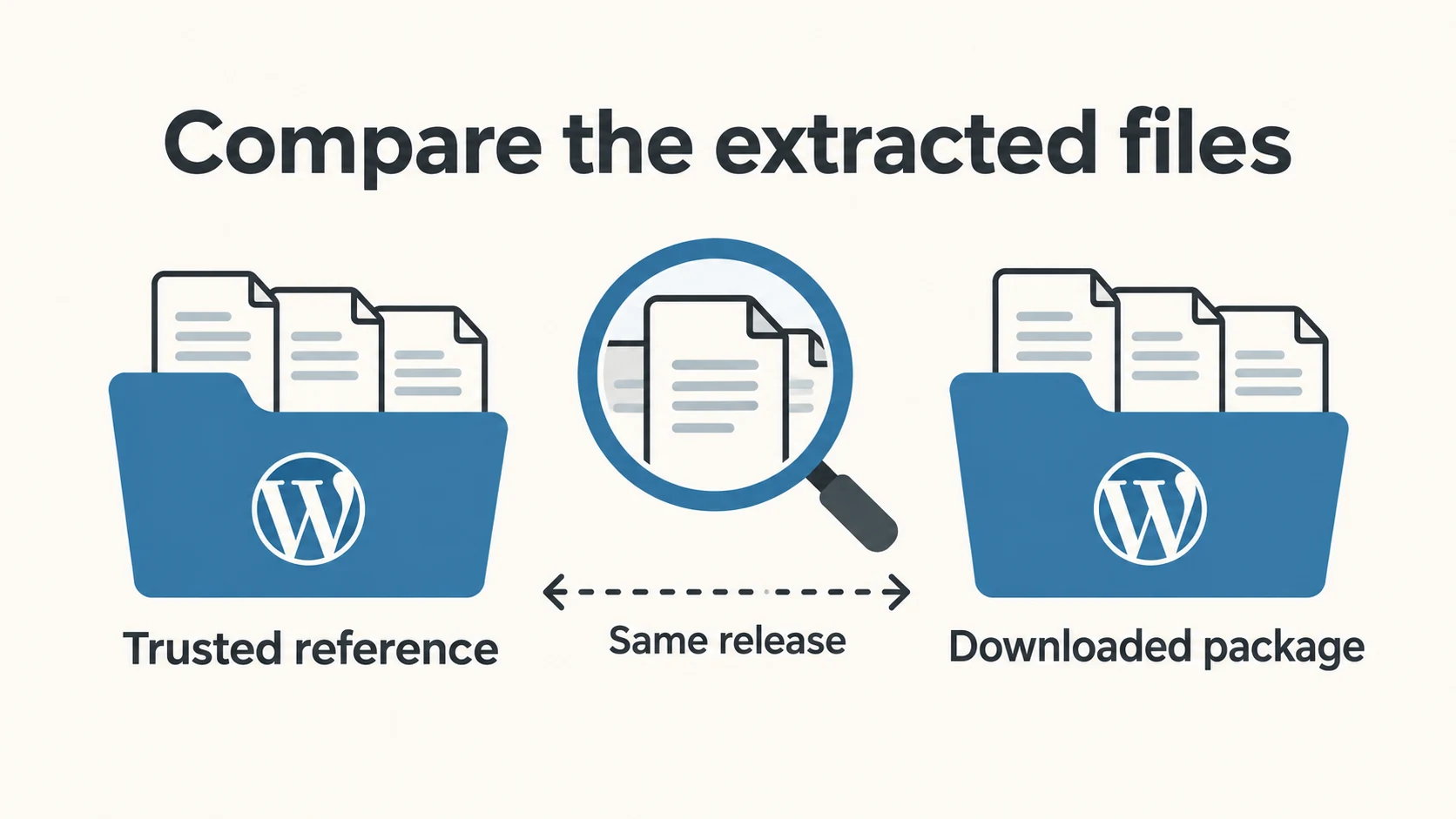
2. Compare files with a trusted copy of the same release
The strongest useful comparison starts with an independently trusted reference: the developer’s own download or another authenticated release source. Compare like with like. Comparing a premium package with its free edition will naturally produce differences and cannot establish the premium package’s originality.
Ask a technical reviewer to compare the extracted file lists and contents without executing the candidate plugin. Added PHP files, changed update code, new outbound connections or removed checks need an explanation in the context of the product. A minified JavaScript file is not automatically malware; legitimate plugins also use compressed assets. The point is to understand unexpected differences, not flag every unfamiliar line as an infection.
A checksum is a fingerprint of file contents. A matching fingerprint is meaningful only when you trust the reference. A hash supplied alongside an archive by the same unknown sender can identify that sender’s file, but is not independent proof of the developer’s original. Two ZIPs can also have different hashes because they were repackaged; compare the extracted files before concluding that the plugin code changed.
For plugins distributed through WordPress.org, administrators can use WP-CLI’s plugin checksum command on an existing WordPress installation:
wp plugin verify-checksums --all --strict
This checks installed plugin files against WordPress.org checksums; it is not a malware scanner or a general ZIP authentication tool. The strict option includes differences the command otherwise treats as less significant, such as readme changes.
Premium and custom plugins may have no WordPress.org checksum reference. As the official WordPress WP-CLI security guide demonstrates, a check can be skipped when the reference is unavailable. “Skipped” means unverified by that method. It means neither “clean” nor “infected.” For those files, obtain a trusted matching reference or arrange a technical review.
3. Scan WordPress plugin files for malware and check the coverage
Ask a trusted technician to inspect and scan the extracted files in an isolated location outside the public web directory, using maintained tools suitable for PHP and JavaScript. Keep the original archive for comparison. Do not run its installer or include its PHP files merely to perform the inspection.
An archive scan is useful only if the tool supports that archive format and inspects the contents you intend to install. A “no threats found” result for an unopened or skipped ZIP tells you little about the files inside it. Request the scan scope and completion status as well as the result.
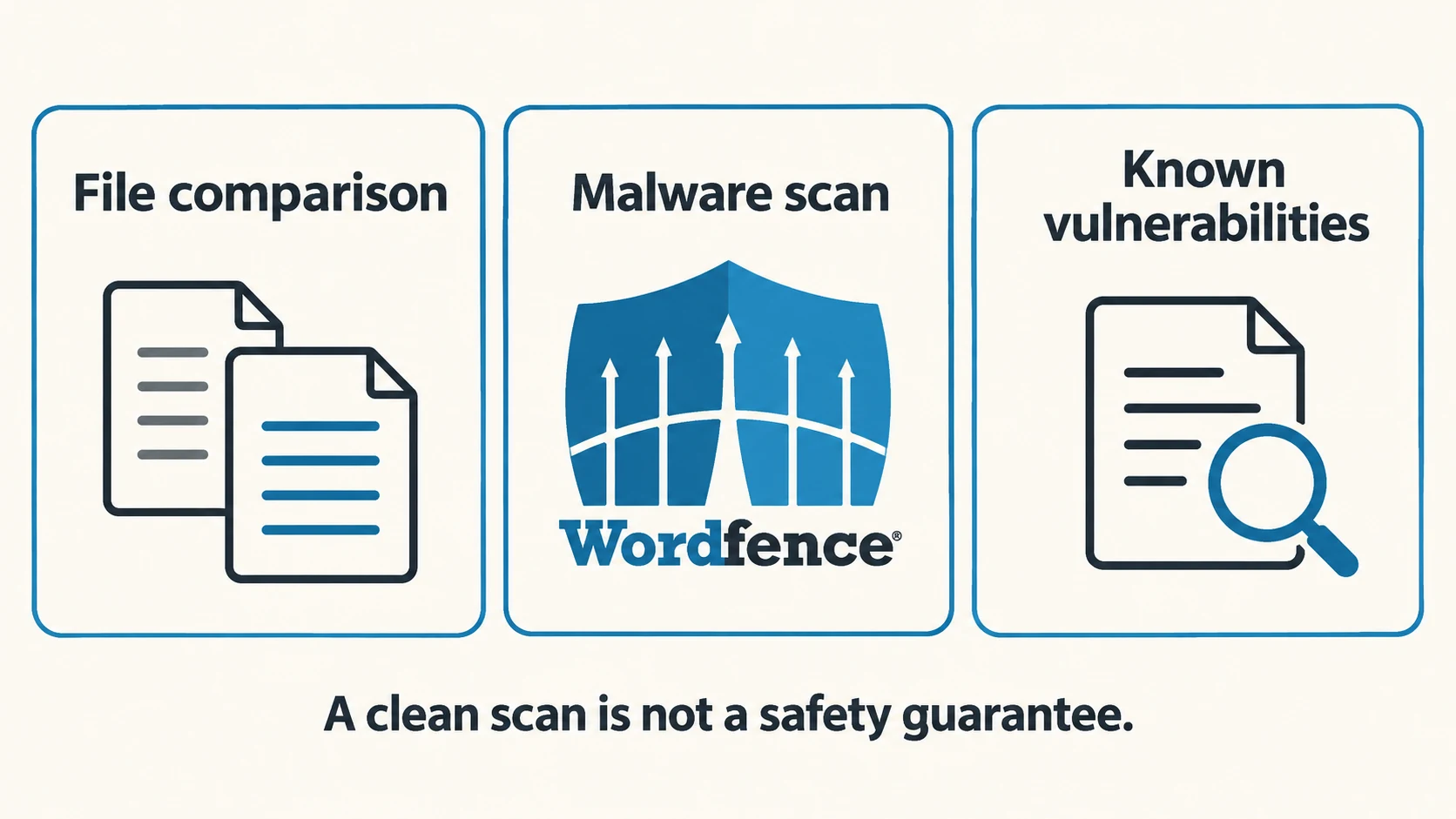
WordPress plugin malware scanning looks for malicious signatures, patterns or behavior detectable by the chosen tool. It can help identify threats; it does not prove the absence of unknown or dormant code. A warning may also require technical interpretation before you can tell whether it is an infection or a false positive.
Wordfence is one example of an ongoing site scanner. Its scan documentation describes checks for known malicious patterns and URLs. It also notes that the Standard Scan does not currently include repository comparison of plugin and theme files; those options can be enabled separately. Confirm the relevant settings rather than assuming every check ran.
Its scan options documentation also describes exclusions and scope settings. Review skipped paths, errors and whether the scan completed. Installing a questionable plugin and then running Wordfence on the live site is a different procedure from examining the download before execution. Our Wordfence review explains the tool’s role in ongoing protection.
4. Check advisories for the supplied release
Search the product’s security notices and a maintained WordPress vulnerability database. Wordfence Intelligence, for example, publishes searchable plugin and theme advisories. Search for the exact developer and product, not only a broad name that another plugin might share.
Read the affected range, the fixed release, the publication date and the conditions needed to exploit the issue. Then check whether your actual package includes the fix. A recent download date does not establish that the enclosed files are current.
If an advisory applies and you cannot obtain the fixed release through a trusted route, postpone the installation. A clean malware scan does not cancel an upstream vulnerability. Conversely, finding no advisory is useful information, but cannot establish that undiscovered flaws do not exist.
5. Test functionality in an environment separated from production
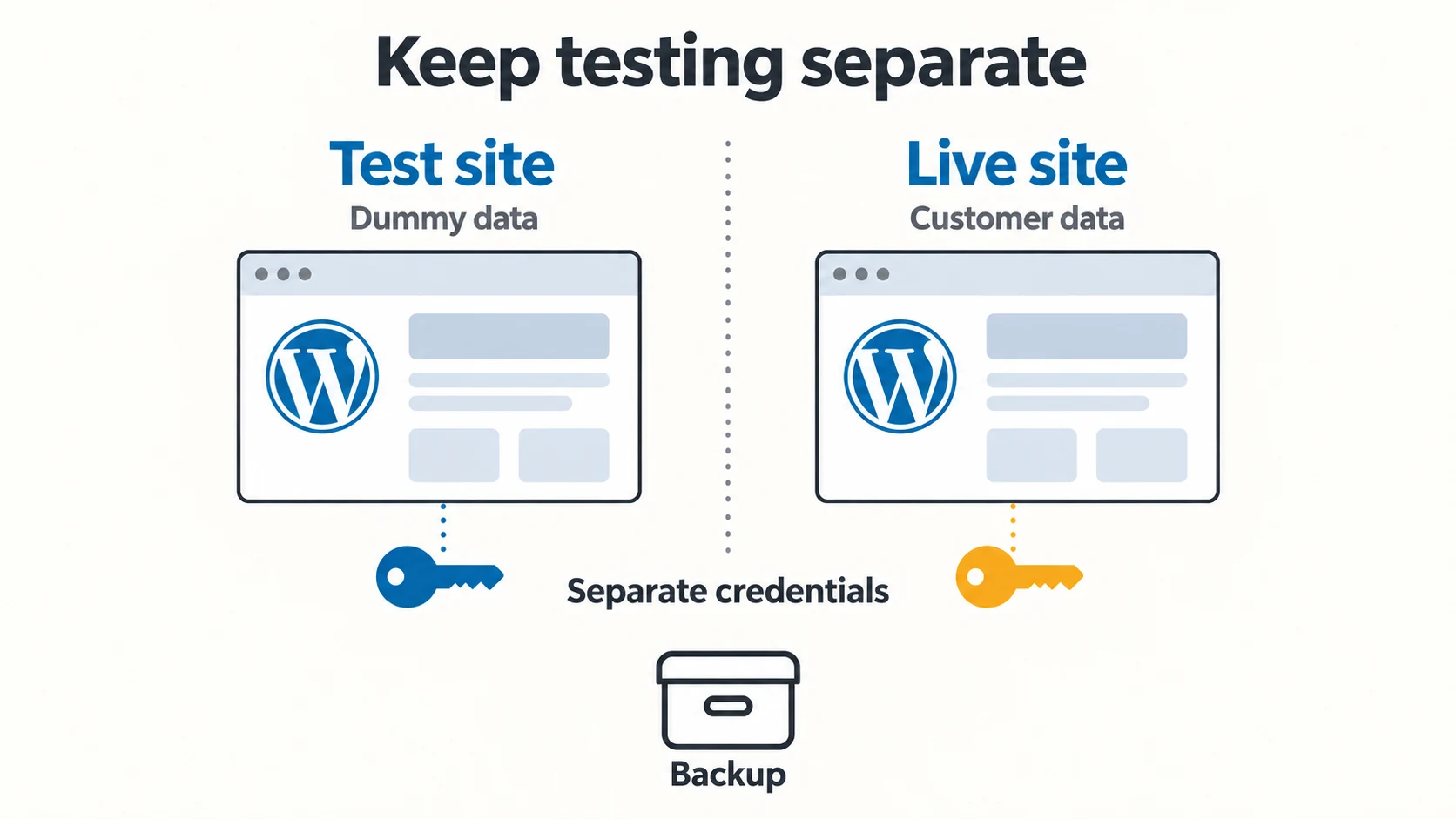
Once the source and file questions are resolved, use a test site with dummy data before changing the live site. Check the plugin’s main function and the journeys it can affect: editing pages, submitting a form, completing a test checkout or logging into an account.
For an unfamiliar package, the environment should be separated from production files, databases and credentials. A staging folder on the same hosting account can share privileges or secrets with the live site. Being called “staging” does not make an environment suitable for running untrusted code. Ask your host or developer what is isolated before using it for that purpose.
Use sandbox integrations and prevent test emails, payments and webhooks from reaching real customers. These are deployment precautions for the test environment, not a replacement for inspecting the package. A successful test shows that the tested workflow functioned under those conditions; hidden malicious behavior may not reveal itself during a short visit.
Before the live change, have a recoverable backup of both files and database, stored away from the installation. Confirm how restoration works. The UpdraftPlus backup guide and WP STAGING guide explain these separate operational steps.
What your checks actually prove
Use this table when reviewing a supplier’s claim or your technician’s report. Each result has a specific meaning; combining them supports a better decision than relying on one reassuring label.
| Evidence | What it helps establish | What remains open |
|---|---|---|
| Traceable source | Who supplied the files and which release they claim to provide | Whether that release has security flaws |
| Match to a trusted reference | The checked files match the reference release | Whether the original code contains a vulnerability |
| Completed malware scan with no detections | The tool found no flagged threats in the files it actually checked | Unknown threats, exclusions and behavior the tool cannot detect |
| Relevant advisory review | Whether a published issue affects the identified release | Undiscovered vulnerabilities |
| Successful isolated test | The tested functions work in that environment | Behavior outside the test and the safety of the wider site |
| Confirmed update route | How you can obtain future fixes | Whether someone will monitor and apply them |
If you have no trusted reference, record that gap instead of calling the package original. If a scanner skipped files, record those files as unchecked. Uncertainty becomes manageable when it is visible and tied to a next action.
Decide for the site you are actually maintaining
Consider this illustrative situation: you are choosing a premium form add-on for a small business site. One supplier identifies the release and update route but cannot provide an independent file comparison. The developer offers a direct download and support. Both packages may carry GPL-covered code, yet the evidence and help available to you differ.
If you have a developer who can review the files and maintain the plugin, the third-party route may be workable. If nobody can resolve the source questions or obtain urgent fixes, a direct purchase may better fit your operating needs. The decision depends on the evidence and maintenance you can sustain, alongside the price.
Before proceeding, you should be able to identify the package, account for relevant modifications, resolve applicable advisories, describe the update path and recover from a failed deployment. For a store or membership site handling customer data, unresolved questions deserve a stronger review before installation.
Pause when the source is untraceable, changes are unexplained, an applicable vulnerability remains unfixed, or the promised update route cannot be confirmed. Ask for the missing evidence or choose another download source. You do not need to prove that a package is malicious to decide that it is unsuitable for your live site.
If you already installed a questionable download
Start by documenting the source, installation date and exact installed release/version. Preserve the original ZIP and relevant logs. Arrange a review of the running site as well as the original package: a clean archive alone cannot explain everything that may have happened since installation.
If there are signs of compromise, involve your host or an incident-response professional. The official WordPress recovery guidance covers documenting the incident, addressing the cause and recovering the site. Simply deleting the suspect plugin may leave accounts, database changes or files elsewhere in the installation.
Replacing a plugin with a trusted copy can be part of remediation, but the wider review matters. Ask the responder which credentials need rotation and whether any backup predates the intrusion. Restoring a backup is useful only when its condition and the cause of compromise are understood.
Make updates part of the installation decision
Keep a small maintenance record: where the plugin came from, how it was checked, which services it relies on, and who handles patches. Revisit that record when the supplier changes, maintenance stops or a security advisory appears.
The practical answer to “are GPL plugins safe” is conditional: GPL-licensed plugins can be suitable for real websites when you have credible files and a workable maintenance process. Before installing, resolve the source, integrity and vulnerability questions. Then assign responsibility for updates, testing and recovery. That gives you a decision based on evidence you can explain and maintain.