
Best WordPress Cache Plugin: Which One Should You Choose?
Choose a cache plugin around your hosting, public pages and customer workflows. Compare five free and paid options, service boundaries and a practical testing routine.

Start with LiteSpeed Cache when your host provides an enabled LiteSpeed cache engine. Consider WP Rocket when you want a paid package combining page caching and front-end optimization. For a straightforward free page cache, compare WP Super Cache and WP Fastest Cache; choose W3 Total Cache when you need more control over separate caching layers.
The best WordPress cache plugin is the one that fills a gap in your current setup. If your managed host already supplies page caching, another plugin may duplicate work instead of solving the problem. Check that arrangement before choosing from a feature list.
WordPress cache plugin comparison at a glance
The recommendations below reflect documented capabilities and hosting requirements. Performance still needs to be measured on your own site.
| Option | Strong reason to consider it | Payment model | Check first |
|---|---|---|---|
| LiteSpeed Cache | Integrating with an available LiteSpeed page-cache engine | Free plugin; infrastructure and online services have their own terms | Server cache support, or the QUIC.cloud CDN route |
| WP Rocket | Page caching plus a consolidated set of optimization tools | Paid licence with a selected term and site allowance | Host integration and access to required cloud features |
| WP Super Cache | Focused, free caching of public pages | Free plugin | Host permission and the recommended Simple mode |
| WP Fastest Cache | A free starting point with optional paid optimization features | Free plugin; Premium uses a one-time purchase model | Which features are free and any server-specific requirements |
| W3 Total Cache | Separate controls for page, browser, object and database caching | Free plugin; optional annual Pro subscription | Available backends and who will maintain the configuration |
This is a shortlist for different jobs, not a speed podium. A free plugin that meets your requirements can be a better purchase decision than a paid tool whose extra settings will remain unused.

Identify the missing cache layer before installing anything
Page caching reuses finished HTML for suitable requests. It can save WordPress from rebuilding the same public page repeatedly. Browser caching lets a visitor reuse downloaded assets according to their cache rules. These are different jobs, even when one interface controls both. The WordPress optimization handbook explains how caching choices depend on the hosting environment.
Persistent object caching retains reusable application data between requests. It does not turn every customer's account or shopping cart into a safely shareable HTML page. The WordPress Object Cache reference distinguishes persistent storage from the default per-request cache. Our Redis Object Cache Pro review covers that separate product decision.
Ask your host what already handles HTML caching, whether a CDN also caches HTML, which plugins it permits and how updates purge those copies. Then assign one clear owner to each job. A page cache and a supported object cache can complement each other; two tools independently rewriting the same files are a different proposition.
Five plugins, with a reason to choose each
LiteSpeed Cache: start with the infrastructure you have
LiteSpeed Cache is the first candidate to evaluate when your host has the appropriate cache engine enabled. Its installation documentation makes the important distinction: the plugin can provide optimization features on other servers, but page caching needs supported LiteSpeed infrastructure or QUIC.cloud CDN. Installing it on an ordinary Apache or Nginx origin does not create that server cache by itself.
That makes host confirmation more useful than an install-count comparison. Ask whether caching is enabled for your site and how to verify a cache hit. The plugin's presence in the dashboard is not that verification.
Also separate its local controls from online services. QUIC.cloud's documentation distinguishes CDN delivery from services such as image and CSS processing. Some online services have usage allowances or paid capacity. “Free plugin” does not mean every connected service is unlimited.
WP Rocket: pay for a consolidated workflow
WP Rocket is worth considering when you want page caching and several optimization controls in one product, with a developer subscription rather than assembling a free stack. Its feature overview covers caching, preload, CSS/JavaScript optimization and lazy loading. These are reasons to evaluate the package; they do not establish that it will win every speed test.
Check the host before purchasing. The hosting compatibility guide documents integrations where Rocket disables its own page cache and retains other optimization functions because the host supplies caching. That can be a sensible division of work, but the remaining features must justify the purchase.
Our WP Rocket review provides more product detail. Keep this decision focused on the functions your current setup lacks.
WP Super Cache: keep public-page caching focused
WP Super Cache is a credible answer to “what is the best free WordPress cache plugin?” when the requirement is reusable public HTML with a focused set of controls. The official plugin listing recommends Simple mode, which serves cached files through PHP. The more involved rewrite-based mode is an option, not a requirement for every installation.
Keep the recommended bypass for known users and check that the host allows the plugin. This is a page-cache choice, not a complete image, script-delay or persistent-object-cache package. If a small publishing site does not need those extras, that narrower scope can make the maintenance task clearer.
WP Fastest Cache: compare the actual free features
WP Fastest Cache Free provides page caching, preload and browser-cache controls, with server-specific considerations. Its developer-maintained listing separates those features from Premium additions such as JavaScript delay, lazy loading and a separate mobile cache.
A responsive site serving the same HTML does not automatically need a paid mobile-cache feature simply because visitors use phones. Identify the actual missing capability before upgrading. The developer's FAQ describes Premium as a one-time purchase; do not compare it as though it were another annual plugin subscription.
For upgrade details, see our WP Fastest Cache Premium review. On Nginx, browser-cache and compression rules may need host configuration rather than an Apache-style switch doing all the work.
W3 Total Cache: choose it for controls you can maintain
W3 Total Cache fits an administrator who needs to configure multiple layers separately. Its official listing describes page, browser, object and database caching alongside optimization and CDN integration. Pro adds further capabilities, but the free plugin already has a broad set of controls.
The relevant question is whether your environment supports the backend you select. Choosing Redis in a menu does not provision a Redis service. Likewise, a sensible disk page cache does not prove that disk-backed object caching is appropriate. The developer's object-caching guide explains why the storage choice matters.
Choose this flexibility when somebody can document and maintain it. Enabling every module is not a substitute for identifying the bottleneck.
What a paid licence or GPL package adds to the decision
Pay for a defined requirement: a useful optimization workflow, developer support, an update arrangement or a connected service. Keep those separate from the plugin's local page-cache function.
For WP Rocket, the current licence-expiry policy distinguishes continuing installed-plugin operation from official updates, support and cloud services. A third-party GPL ZIP does not, by itself, establish the developer-account entitlement those services need. Check the actual package and supplier terms against your required features.
For example, Remove Unused CSS requires a valid WP Rocket licence and a page its external service can access. If that is the feature you are buying, obtaining the installable files alone does not answer the purchasing question.
GPL redistribution and a package labelled “nulled” also raise different questions. Our GPL versus nulled guide explains the terminology; the updates and support guide explains maintenance arrangements. Compare the offer you will actually receive rather than assuming all purchase routes include identical services.
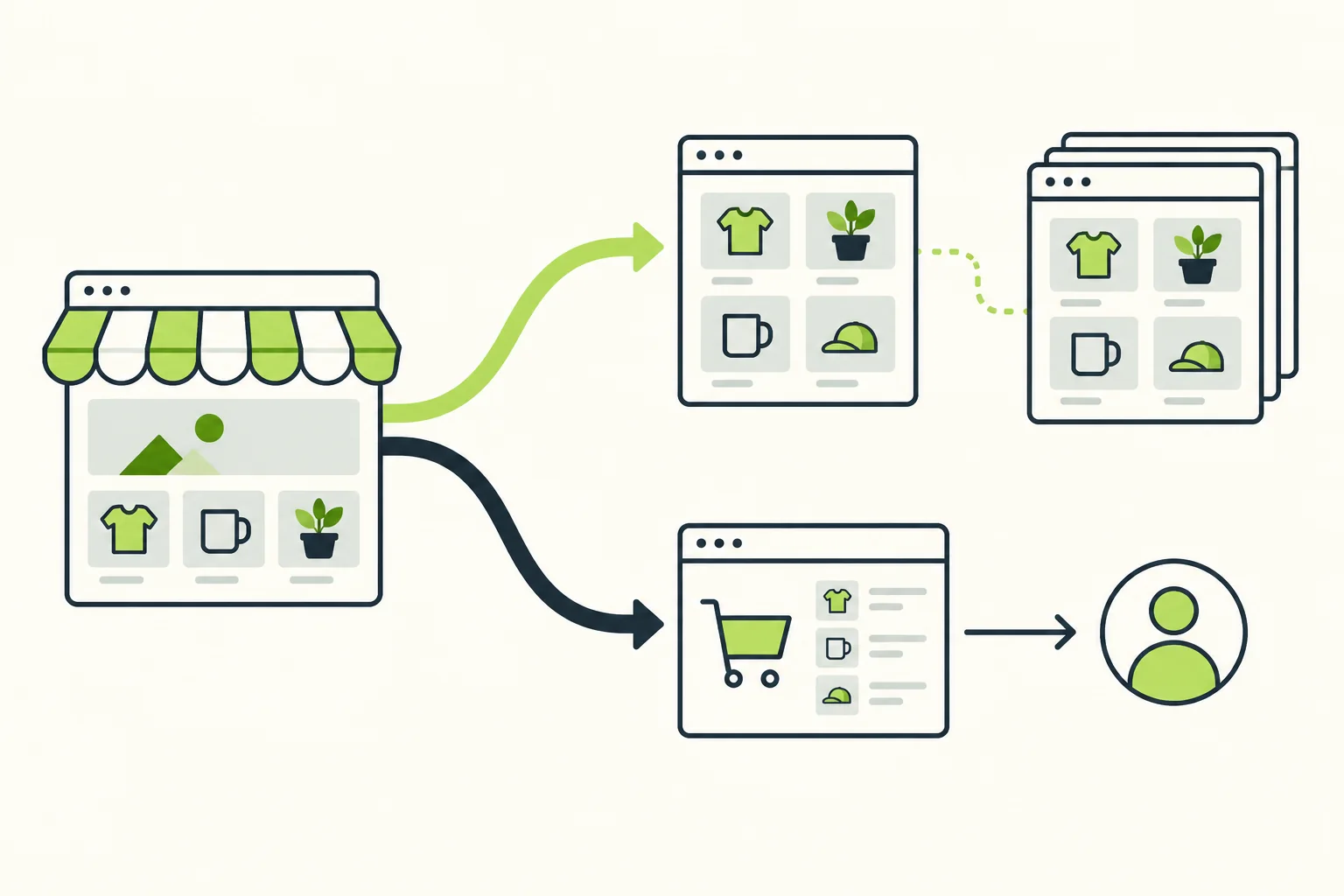
Choosing the best cache plugin for WooCommerce
For a store, correct customer behaviour belongs in the selection criteria alongside loading speed. Public catalogue pages and customer-specific requests have different requirements.
WooCommerce's caching guidance says Cart, Checkout and My Account need to remain dynamic, and explains session and cookie handling. It also documents native WP Super Cache compatibility. Several other shortlisted plugins recognize common store pages, but a plugin's exclusion does not prove that a separate host or CDN rule is correct.
Test the experience your shop actually provides: add a product, change its quantity, open the cart, proceed through a test checkout and inspect the account area. Confirm that another independent session does not inherit customer-specific content. Include any currency, location, membership-price or cart-widget behavior that your theme adds.
Slow checkout can also involve uncached PHP work, database requests or external services. Public-page caching does not remove all of that work. Investigate the remaining bottleneck and evaluate supported object caching separately where appropriate.
The practical winner for a WooCommerce site is therefore the host-compatible arrangement whose exclusions, freshness and customer flows you can verify. A faster-looking product page is insufficient evidence if the buying process becomes unreliable.
Compare plugins with a repeatable acceptance check
Use the same pages, visitor state, test location and device settings for each candidate. Record the starting configuration and change one thing at a time. Keep a recoverable backup before replacing an established setup.
First, identify what success should look like:
| Check | What to verify | What a failure tells you |
|---|---|---|
| Repeated public request | A suitable page reaches the documented cache-hit state | The cache may be unavailable, bypassed or configured differently than expected |
| Content update | A changed heading or product detail becomes current through the active layers | Purge or invalidation responsibilities need attention |
| Customer workflow | Relevant forms, accounts, carts and checkout retain correct behaviour | Exclusions, personalization or script changes need investigation |
For the first check, use the plugin or host's documented headers or diagnostics. Distinguish an initial request from a warmed request. A cache hit confirms that a layer is serving a saved response; it does not prove that images render promptly or scripts remain responsive.
For the freshness check, edit a harmless piece of content on a test copy, then view it as a visitor. Include the host and CDN in the investigation if they also store responses. Repeatedly purging only the WordPress plugin can hide which layer is retaining an old copy.
For performance, repeat measurements rather than selecting the most flattering run. Keep server cache state and browser cache state consistent between comparisons. Google's explanation of lab and field data distinguishes controlled tests from real-user experience; a synthetic result is useful for diagnosis, while field data reflects a wider range of actual visits.
Finally, enable optional file optimizations individually and check menus, forms, consent tools and any important interactive components. Keep a short record of the setting and the page affected. If a script-delay option breaks a required interaction, a higher score does not make that configuration a successful choice.
Make the smallest choice that covers the missing work
Start with the host's supported caching arrangement. If a LiteSpeed cache engine is available, evaluate its integration first. If you want a paid consolidated toolkit, evaluate WP Rocket against the functions and services you will use. For a focused free start, compare WP Super Cache and WP Fastest Cache. For separately managed caching layers, consider W3 Total Cache with an administrator who can maintain the configuration.
Then write down the owner of page caching, any object-cache service, CDN behaviour and file optimization. Add the purge method, important exclusions and the checks that must still pass after an update.
That record gives you a practical basis for choosing the best WordPress cache plugin. You can see what the tool supplies, what the host already handles and whether payment adds something useful. Keep the setup that meets those requirements and behaves correctly on your actual site.