
TranslatePress Pro Discount: Choose the Right Translation Plan
Choose a TranslatePress plan around your visual translation workflow, site count and multilingual SEO needs, with a verified discount route and a practical pilot.

A TranslatePress Pro discount is useful when it applies to the plan your website actually needs. The developer advertises a 15% offer through its official discount page. Before choosing a licence, decide how many sites you will translate, whether someone else needs access to the editor, and how much automatic translation you expect to use.
TranslatePress is particularly appealing when you want to translate a page while looking at its layout. You can work on a heading, navigation label or button in context, then check whether the translated wording still fits. Paid plans add multilingual SEO tools and other capabilities, but you do not need the largest plan simply to translate one website into several languages.
This guide draws on the developer's documentation and published terms. It explains the visual workflow, the differences between purchase options and a practical way to evaluate the plugin before committing your whole site.
Where to find a genuine TranslatePress Pro discount
Start with the developer's official discount page. It directs you to special pricing with a 15% reduction; the documented route uses a link rather than a coupon string that you must copy from an unrelated website.
Check the selected plan and total in your order summary. A promotional first purchase does not establish what a later renewal will cost. Read the billing terms presented for your purchase, including any applicable tax, instead of treating a percentage in an article as a guaranteed final price.
The more useful saving often comes from choosing the right tier. If your only requirements are several languages and translated search metadata on one site, a higher site allowance may add little value. If a translator needs a separate account, that changes the decision even when you still have only one website.
Translate the page visitors see
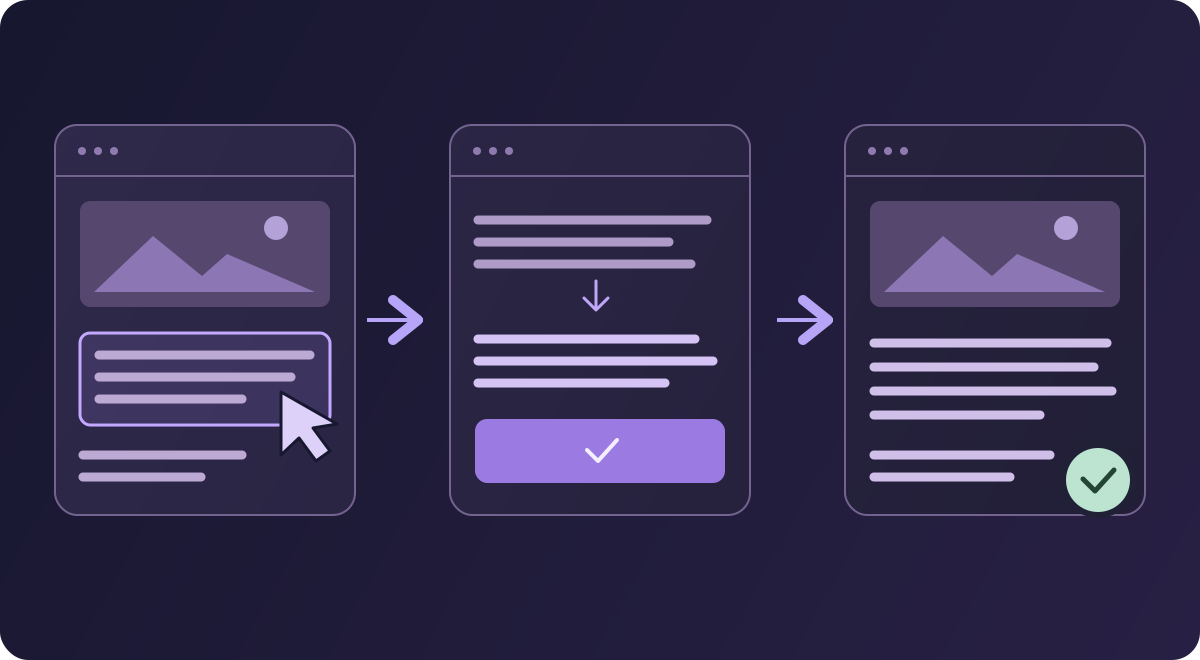
The visual translation editor opens from Translate Site in the WordPress admin bar or the TranslatePress settings. Select text in the page preview using its pencil control, enter the translation in the sidebar and save it. Change the preview language to inspect the result in place.
Consider a hypothetical photography studio translating an English service page into French. Its heading, package descriptions, booking button and enquiry form belong to one visitor journey. Reviewing those pieces together makes it easier to notice that a technically correct button sounds awkward beside the offer, or that a longer label wraps badly on mobile.
Work through the journey in the order a customer follows it. Start with the promise at the top of the page, continue through the services, and finish with the action you want the visitor to take. Keep product names and recurring terms consistent. Decide once how to translate a service name, then reuse that wording where the same service appears.
Images deserve the same attention. A photograph may work in every language, while a banner containing English text may need a different asset. TranslatePress supports language-specific image replacement. Choose whether the image itself needs changing before spending time rewriting its description.
The free plugin is a useful place to evaluate this workflow. The developer-maintained WordPress listing supports one original language and one translated language, including manual visual translation. Try a representative page with your actual theme and forms. A plain paragraph is a poor compatibility test if your important pages contain popups, conditional fields or product variations.
TranslatePress pricing: match the licence to the job
The standard pricing page lists these annual plans before promotional reductions. The monthly equivalents shown there are not monthly billing options.
| Plan | Standard annual price | Site allowance | Included AI words | Useful distinction |
|---|---|---|---|---|
| Personal | €99 | 1 site | 50,000 | SEO Pack and multiple languages |
| Business | €199 | 3 sites | 200,000 | Adds translator accounts and professional workflow add-ons |
| Developer | €349 | Unlimited sites | 500,000 | Business feature set with greater capacity |
All three include one year of updates and premium support and renew automatically unless cancelled. Personal already includes the SEO Pack: translating titles and slugs is not a Developer-only capability. Business and Developer add tools such as role-based previews, language-specific navigation, different domains per language and the DeepL integration.
An owner translating a single brochure site should therefore start by assessing Personal. A team using outside translators may need Business for its account workflow. Developer makes more sense when the work extends across a larger portfolio, rather than because its name sounds more advanced.
What a TranslatePress Developer license means for client work
For an agency, count maintained sites and define who owns the ongoing translation process. Under the developer's licence terms, client-site use depends on an ongoing consulting relationship; it is not permission to hand out or resell licence keys freely.
Include translation maintenance in the handover discussion. Someone must review new content, manage access and decide how the client receives future updates. If the client will take complete ownership, clarify the licensing arrangement with the vendor rather than assuming an agency key can simply become the client's subscription.
A translated headline is only part of a multilingual page
The SEO Pack lets you translate titles, descriptions, URL slugs, image alt text and social metadata. It also extends sitemap support for compatible SEO plugins, including Yoast and Rank Math. These are separate surfaces from the visible page heading.
For the studio example, a French heading does not finish the work if the search title still describes the English service. Read the title and description as a pair: they should accurately explain the offer in the language people use to find it. A literal translation may be grammatical without matching local terminology.
Use the editor's Meta Information entries for relevant metadata and String Translation for detailed slug work. Keep an image's alt text descriptive. It should explain the image where needed, rather than become a second list of target keywords. Review social sharing text separately when your SEO setup provides it.
TranslatePress complements your SEO plugin's content settings. If you are also deciding between those plugins, our Rank Math versus Yoast comparison addresses that separate choice. Adding languages does not automatically resolve weak source content or guarantee search traffic.
Buying a multilingual WordPress plugin cheaply: include the translation work
Licence price is only one part of the budget. Allow time for terminology, review, layout adjustments and future source changes. A smaller launch with well-maintained translations can be more useful than publishing every available language at once.
TranslatePress AI uses an allowance shared across the sites on a licence. Translation into each target language consumes words. As a rough planning example, 10,000 source words translated into three languages suggest about 30,000 translated words before extra interface text and later changes. This is an estimate for planning, not an exact billing calculation.
That shared pool matters for Developer users: unlimited sites does not mean unlimited AI, or a separate 500,000-word balance for every site. Review usage across the portfolio before promising clients automatic translation of an entire catalogue.
Saved translations are reused, so a visitor opening an already translated page does not mean translating its unchanged content again. New source wording creates new work. Set a review routine for changed service descriptions and navigation, especially where a small edit changes the meaning of an offer.
A third-party GPL package is another purchase route. WPPerks links to a Personal-labelled TranslatePress package, whose included files and supplier services should be assessed as that specific offer. Do not equate it with the developer's Business or Developer subscription, included AI allowance or direct support. Our GPL updates and support guide explains those service distinctions.
Run a small translation pilot before expanding
Choose one page that represents the work your site actually does. For the studio, use a service page with an enquiry form; for a store, use a product that exercises the normal buying journey. Keep the pilot narrow enough that a fluent reviewer can inspect every important state.
- Prepare the source. Remove outdated wording and settle service names before translating. Otherwise you will spend review time repairing translations of text you meant to replace.
- Translate visible content. Work through the headline, main explanation, navigation and primary action. Review full sentences together instead of treating every short string as an unrelated phrase.
- Review automatic output. If you use it, check names, terminology, numbers and tone. Fluent text still needs to describe the same offer as the source.
- Open the hidden states. Trigger form errors, confirmations, expandable sections and any popup the visitor is likely to encounter. Record untranslated strings and investigate them in the editor.
- Finish the search and image details. Check the title, description, slug, relevant alt text and any replacement graphic. A completed body does not imply these are complete.
- Repeat the journey as a visitor. Use a logged-out session and a narrow screen. Confirm that the action works and the layout remains readable.
For collaborative work, Translator Accounts allow translation without giving the person an administrator's normal backend access. Do not assume each translator is automatically restricted to one language: the documented account workflow allows the configured languages, while narrower language permissions require customization.
Write down who approves terminology and who checks functional pages. Separating these responsibilities prevents a translated form label from being treated as proof that the form itself works correctly.
Make language switching and maintenance part of the launch
TranslatePress documents several language-switcher placements, including menus and a floating switcher. Pick a position visitors can find consistently on both desktop and mobile. Language names are useful for visitors who do not recognize a flag or whose language spans several countries.
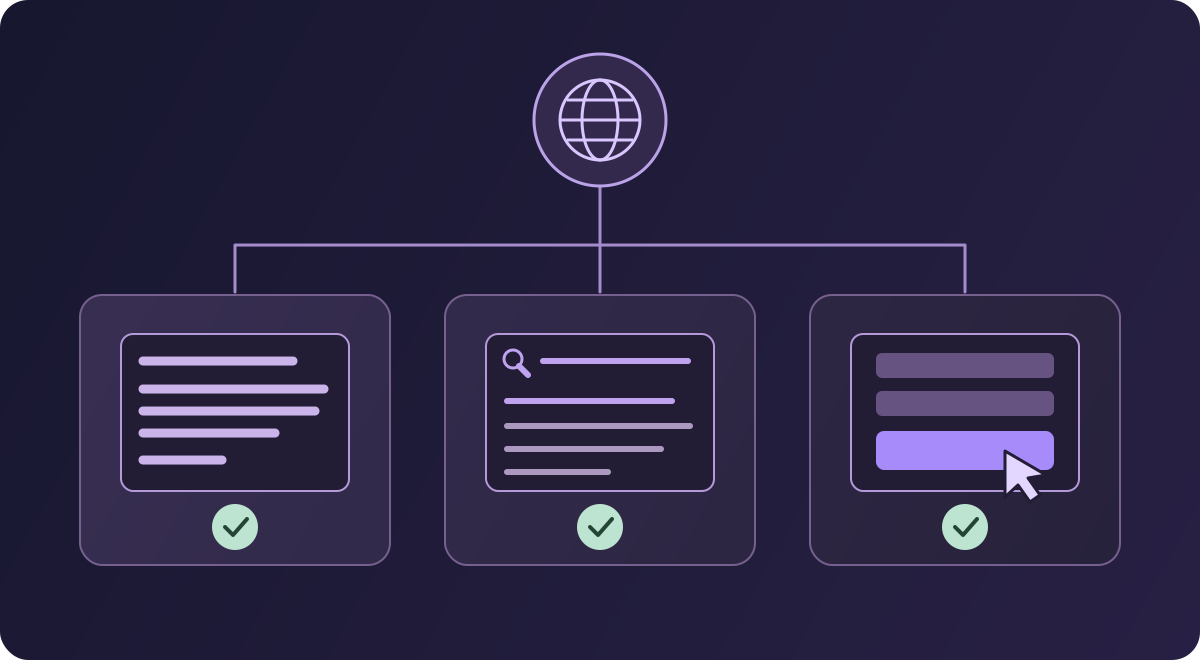
Before launch, verify the important outcomes:
| Surface | Acceptance check |
|---|---|
| Language switcher | The visitor can find it, operate it with a keyboard and reach the equivalent page |
| Main content | The translated offer has the same meaning and reads naturally |
| Buttons and navigation | Labels remain readable and destinations are appropriate |
| Forms or checkout | Errors, confirmations and the full action flow make sense in the chosen language |
| Search presentation | Title, description and localized URL match the actual page |
| Images | Embedded text is suitable and relevant alt text is localized |
Treat these as checks to perform on your own configuration, not a claim that every theme or integration will behave identically. Retest the affected journey when a template or important plugin changes.
Renewal also belongs in the maintenance plan. The developer's FAQ explains that existing translations remain available after licence expiry, while AI, downloads, updates and some premium functionality become unavailable. Keeping translated text does not mean retaining every paid service indefinitely.
Choose TranslatePress when reviewing translation against the visible page suits your team. Start with a representative pilot, select the minimum plan that supports the workflow, and then use the verified offer for that plan. A modest saving is worthwhile; a translation process you can keep accurate is the larger benefit.